Windows Forms App with VC# in Visual Studio 2017
How to build a Windows Forms application with VC# code in Visual Studio 2017?
✍: FYIcenter.com
 If you want to build a Windows Forms application with VC# code in Visual Studio 2017,
you can follow this tutorial:
If you want to build a Windows Forms application with VC# code in Visual Studio 2017,
you can follow this tutorial:
1. Click "File > New > Project" menu. You see the new project box showing up.
2. Select "Windows Forms App (.NET Framework) as the project type under "Other Languages > Visual Basic" section,
3. Enter the following project name and location:
Name: HelloWfVcs
Location: c:\fyicenter\vcs2017
Solution name: HelloWfVcs
4. Click "OK". You see a default application form displayed on the visual design section showing up.
5. Drag the bottom right corner to change the size of the application form.
6. Drag and drop any form controls from the Toolbox.
7. Open the Form1.vb code to enter your VB coding.
8. Click "Build > Build Solution" to build the application.
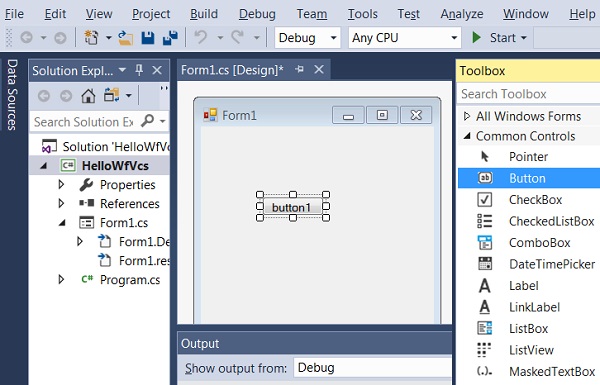
The picture below shows you how to build a Windows Forms application with VC# code in Visual Studio 2017:
⇒ Console App with VC# Code in Visual Studio 2017
⇐ Release Build of VC# Code in Visual Studio 2017
2017-08-08, ∼3724🔥, 0💬
Related Topics:

