Start Python in Interactive Mode
How to Start Python in Interactive Mode on my Windows computer?
✍: FYIcenter.com
 You can start Python in interactive mode on your Windows computer
in several ways:
You can start Python in interactive mode on your Windows computer
in several ways:
1. "python" in command window - In a command window, enter the "python" command. If the python installation folder is in the PATH environment variable, the Python interpreter will be started giving you the interactive mode prompt.
2. Launch "python" from "Start" button - Click "Start > All Programs > Python 3.6 > Python 3.6 (32-bit)". The Python interpreter will be started giving you the interactive mode prompt.
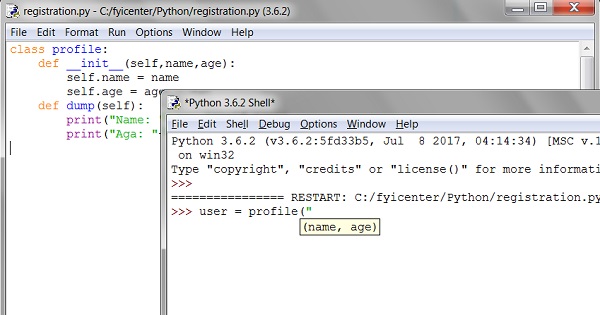
3. Launch Python IDLE from "Start" button - Click "Start > All Programs > Python 3.6 > IDLE (Python 3.6 32-bit)". The Python IDLE (Integrated DeveLopment Environment) will be started giving you the interactive mode prompt in a Python Shell window.
Of course, Python IDLE is the better than Python interpreter to use. It allows you to:
- Run Python in interactive mode in the Python Shell.
- Edit Python module files in multiple editing windows.
- Run Python in debug mode.
The picture below shows you Python IDLE with a module file window
and a shell window:
⇒ help() - Getting Help in Python Interactive Mode
⇐ What Is Python Interactive Mode
2023-01-06, ∼2737🔥, 0💬
Related Topics:
